“Why can’t I see it?” Diagnose Invisibility gets an interactive upgrade
You know the moment: the element is in the model, but not in the view. Analysis > Inspect > Diagnose Invisibility has always told you why. Now it also lets you fix it.
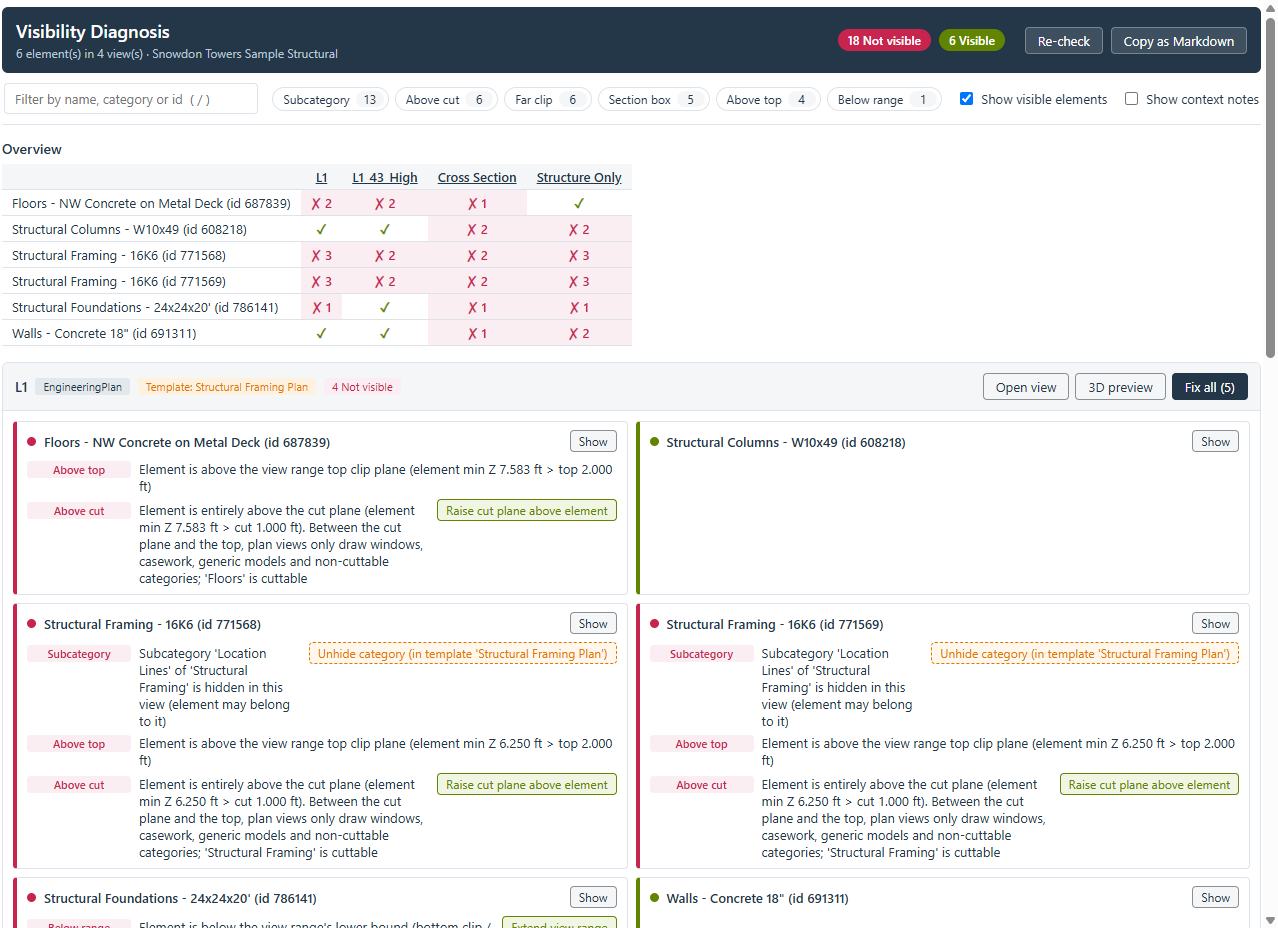
Select the elements, pick one or more views, and you get an interactive report in the pyRevit output window:
- Every reason at a glance. You see worksets, phases, design options, hidden categories and subcategories, hidden elements, Temporary Hide/Isolate, view filters, crop region, section box, far clip, view range and more. Filter by cause, search by name or id, and use the overview grid to see which element hides in which view.
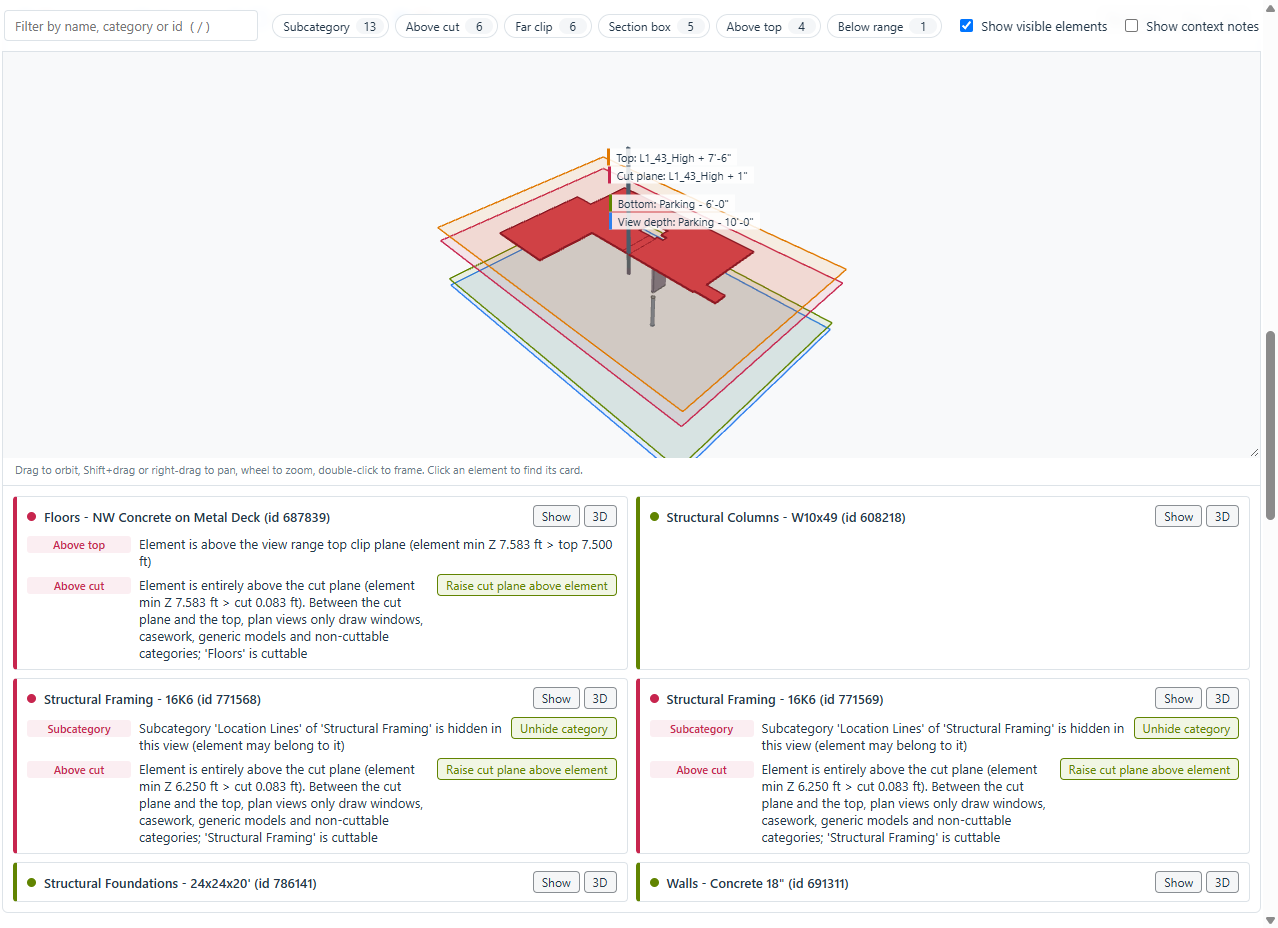
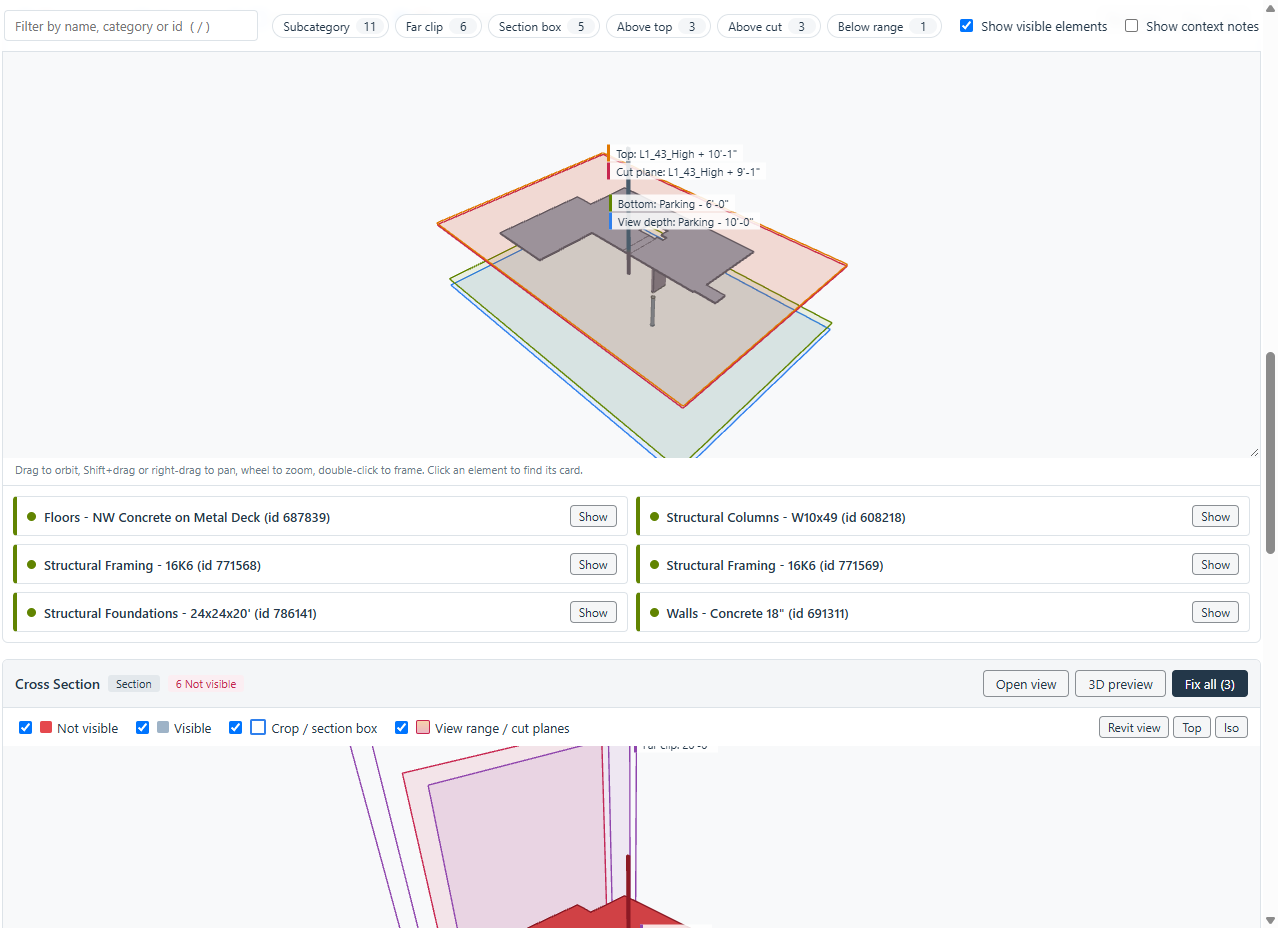
- One-click fixes. Unhide the category, make the filter visible, expand the section box, disable the crop, raise the cut plane, and so on. “Fix all” repairs a whole view as one undo step. If a view template is in control, the button tells you and fixes the template.
- 3D preview of the view’s clipping. Spin around the elements with the view range planes, cut plane, far clip, crop region or section box drawn in. Red means not visible. You see why instead of reading coordinates.
- Plan-view rules that match Revit. Elements between the cut plane and the top are correctly reported as hidden unless they are windows, casework, generic models or not cuttable. This also covers the 2023 change to Specialty Equipment and Furniture. One click on “Raise cut plane above element” brings them back.
- Select or zoom to any element from the report, open the view, or copy the whole diagnosis as Markdown for a coordination email.
It works in any language pyRevit supports, and it uses the output window’s new WebView2 renderer. On machines without the WebView2 runtime you still get the classic printed report. Feedback welcome, especially from Revit 2021–2023 and 2025+ users!
Grab the latest WIP to try it before the next release!