Hi, there. I have Russian selected in the UI/UX section of the settings, but it doesn’t work. To change the language to Russian, I had to edit all the YAML files and write the Russian translation into the en_us strings.
Revit is in Russian, and Windows has three languages: Russian, English, and Ukrainian.
Does anyone know how to translate without a dancing with a tambourine?
Hi Andy.
If you had already switched in pyRevit settings to Russian locale, it should be available after application restart. It does not really matter what languages are set up in your system and in Revit. pyRevit uses it’s own locale in UI/UX section. This should be enough. Note, that not all the tools have translated names and tooltips.
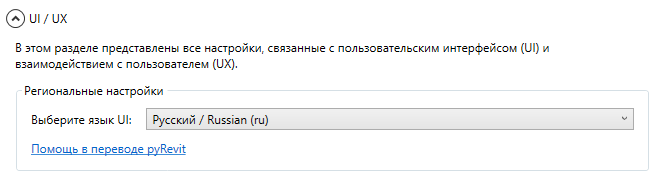
After setting it up the way shown on the image above and restarting you are going to see tools in the selected locale (if supported):
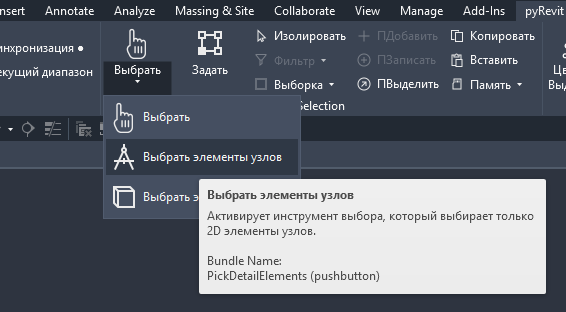
You are not actually supposed to tackle app the way you did. It should work “out-of-the-box”.
Try again, if persist, provide more info on your issue like the pyRevit version and etc..
Thanks, hope it helps.
I already wrote that switching the language in the UI/UX section doesn’t work for me, no matter how many times I reload Revit and refresh the panel. It’s clear that you shouldn’t do it like I did. That’s why I’m asking why it doesn’t work for me. No matter what translation I choose, it still remains EN
pyrevit 5.3.1, revit 25.4
And the Minify Revit UI settings are not saved - after restarting Revit, everything is reset
Installing the non-admin version did not solve the problems.
Do you have a pyrevit-config.ini file and what’s in it?
[environment]
clones = {“master”:“C:\Users\user\AppData\Roaming\pyRevit-Master”}
[environment]
clones = {“master”:“C:\Program Files\pyRevit-Master”}
This is in the admin version.
And none worked?
With the non admin, when you set the locale to Russian, the .ini file does not contain more? it should, because this is where the locale setting is being saved
Try, with not admin version installed only _ make sure no other version remains installed:
- Launch Revit
- Set locale to ru in pyrevit settings
- Report the content and location of the pyrevit-config.ini file
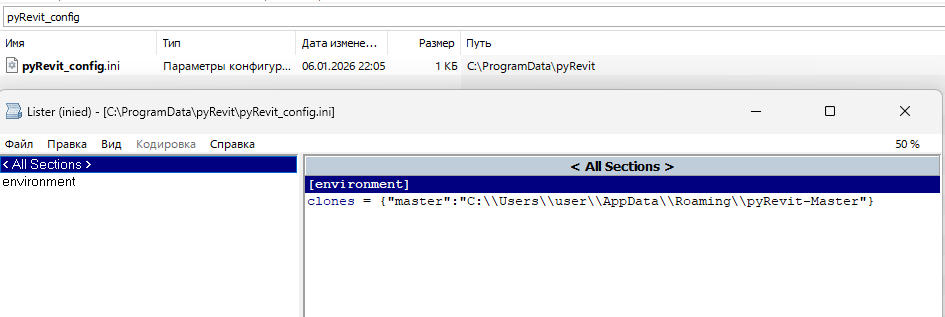
ok, can you try uninstalling and installing with the latest wip installer
get it from this page Merge pull request #2976 from TPJW/fixIndetProgressBarTitle · pyrevitlabs/pyRevit@b4bb7a8 · GitHub
at the bottom, it will let you download the zip folder containing all the latest installers with bug fixes - and there is one I validated a couple of minutes ago that could be the reason for your issue
Unfortunately, nothing has changed. I’ll try deleting all the plugins one by one. Or maybe I’ll reinstall Revit.
You shouldn’t have to reinstall Revit at all.
I managed to set to russian my own pyrevit without issues, so I am guessing this has to do with either an appblocker that do not let pyrevit write the config file or broken config file (try moving the config to another folder, launch Revit, set to ru)
If nothing else works
Try deactivating other plugins one at a time and restart revit (if in Revit 2025+ there is an built-in addin manager in Revit to do so, or you can do it with the diroots one app as well)
I didn’t immediately notice that the configuration file was installed in the C:\ProgramData\pyRevit folder, even though I installed the non-admin version. I deleted the configuration file from that folder, and it was created in C:\Users\user\AppData\Roaming\pyRevit with the settings. Thank you very much!
I tried installing version pyRevit_5.3.1.25308_admin_signed. The config was saved in C:\ProgramData\pyRevit. I deleted it. When changing settings in Revit, an empty pyRevit_config.ini was written to the C:\ProgramData\pyRevit folder, and the config with the working settings was saved to C:\Users\user\AppData\Roaming\pyRevit.